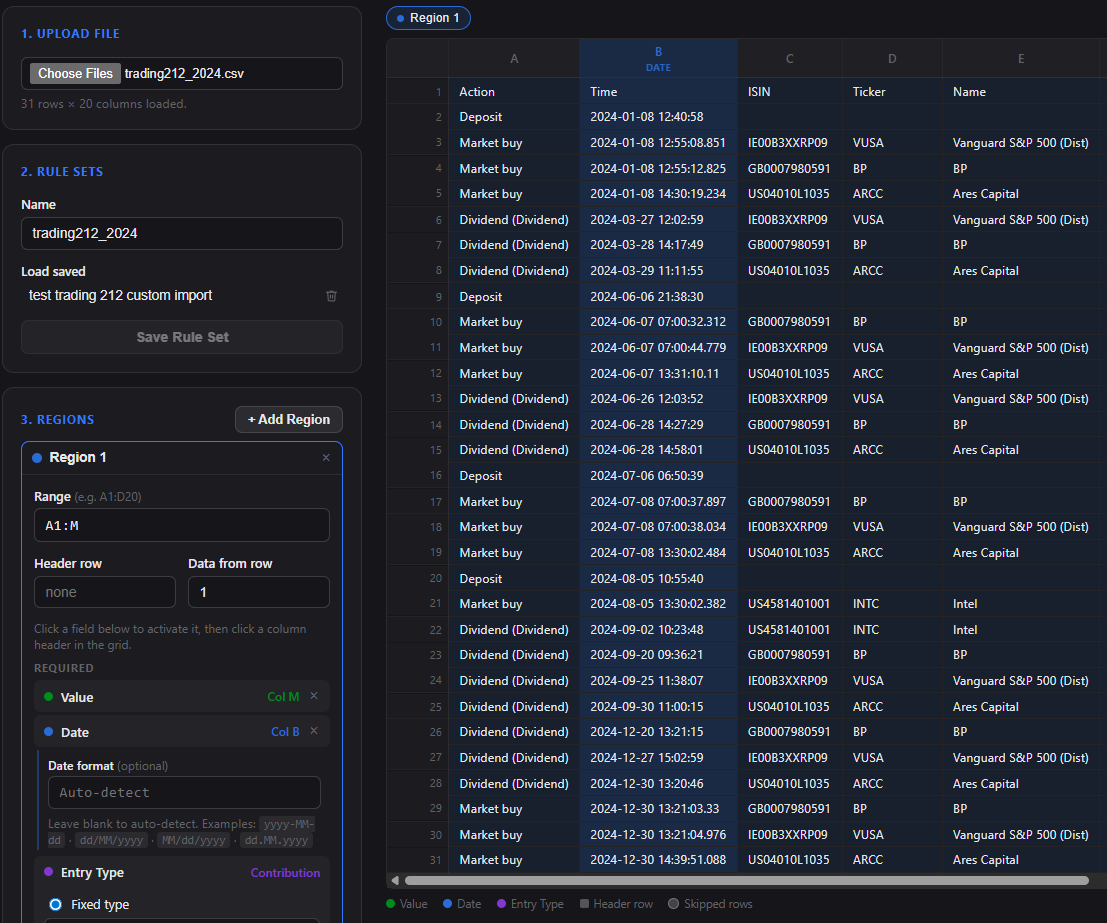
Finished with a portfolio? Close it, sell it, and put it away #
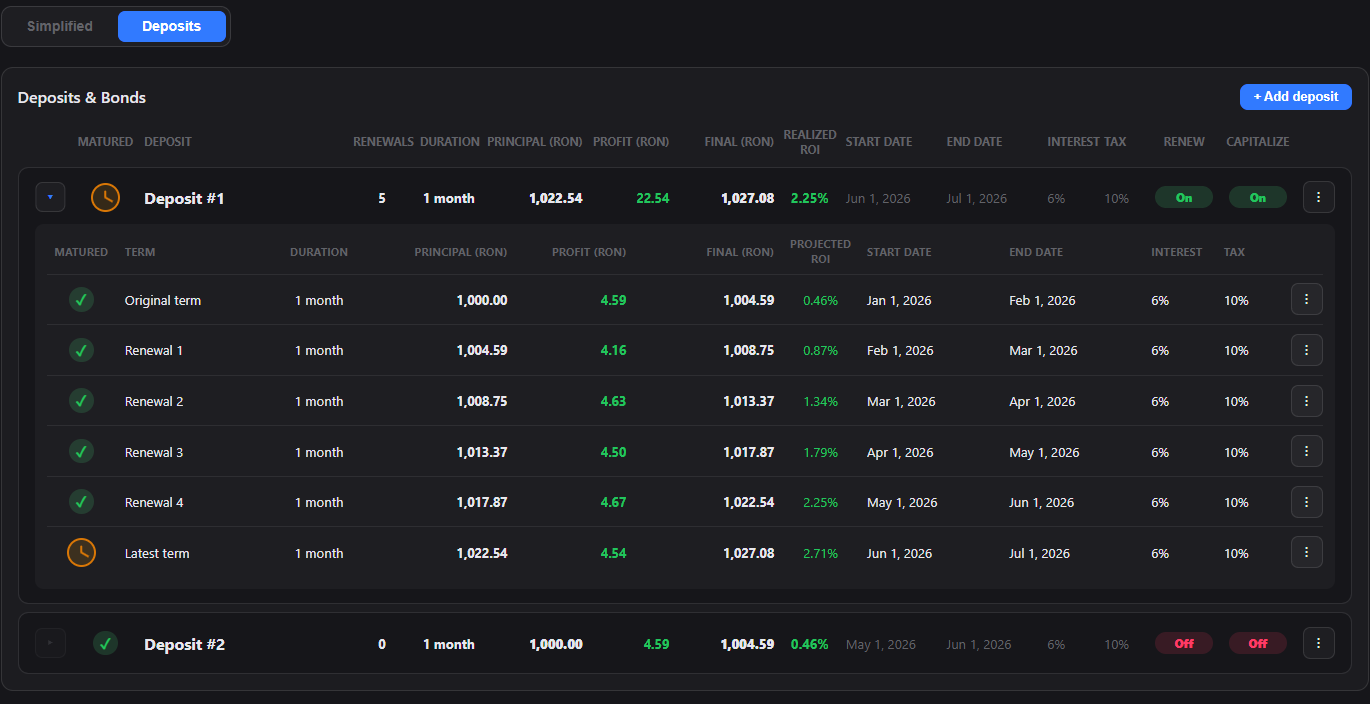
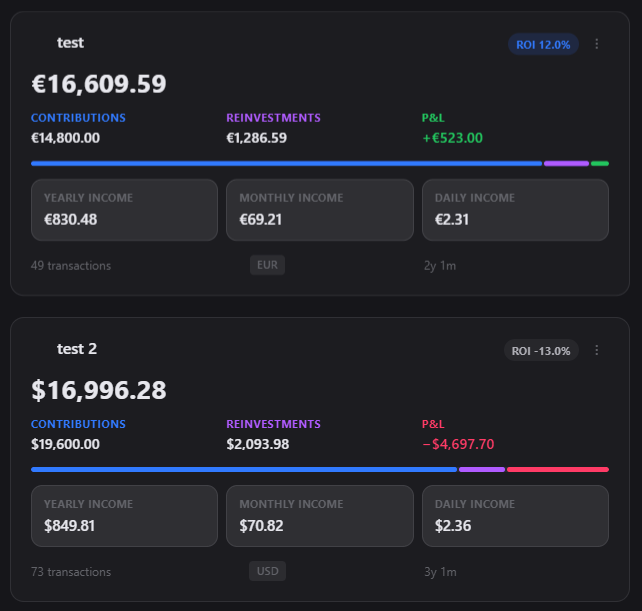
2026-07-31Accounts you have emptied no longer sit on your dashboard at zero. Close an account or sell out of it in one action, and finished portfolios move to a collapsed Archived section — keeping every entry, out of your net worth.
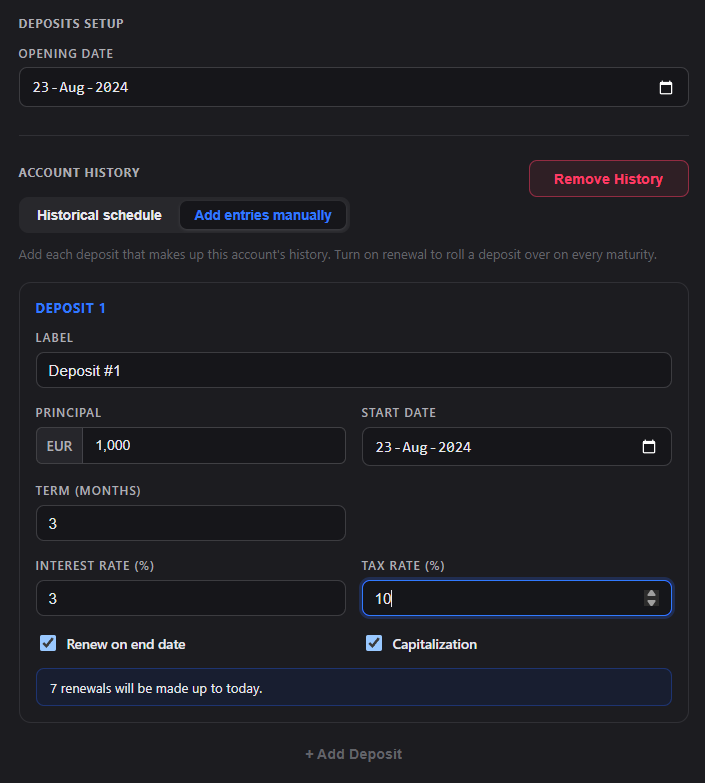
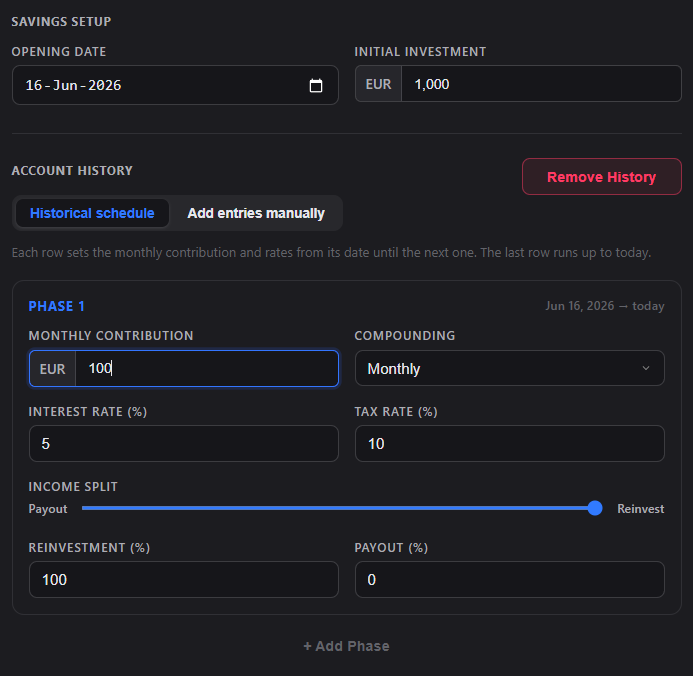
- Close an account — Savings, Deposits & Bonds, Lending or Cash. Pick a date and the balance comes back as a withdrawal. Nothing is booked as a gain, because the interest you earned is already in your history and already part of that balance. Deposits still running are withdrawn, loans still open are marked settled, and interest generation stops so a closed account cannot quietly keep growing.
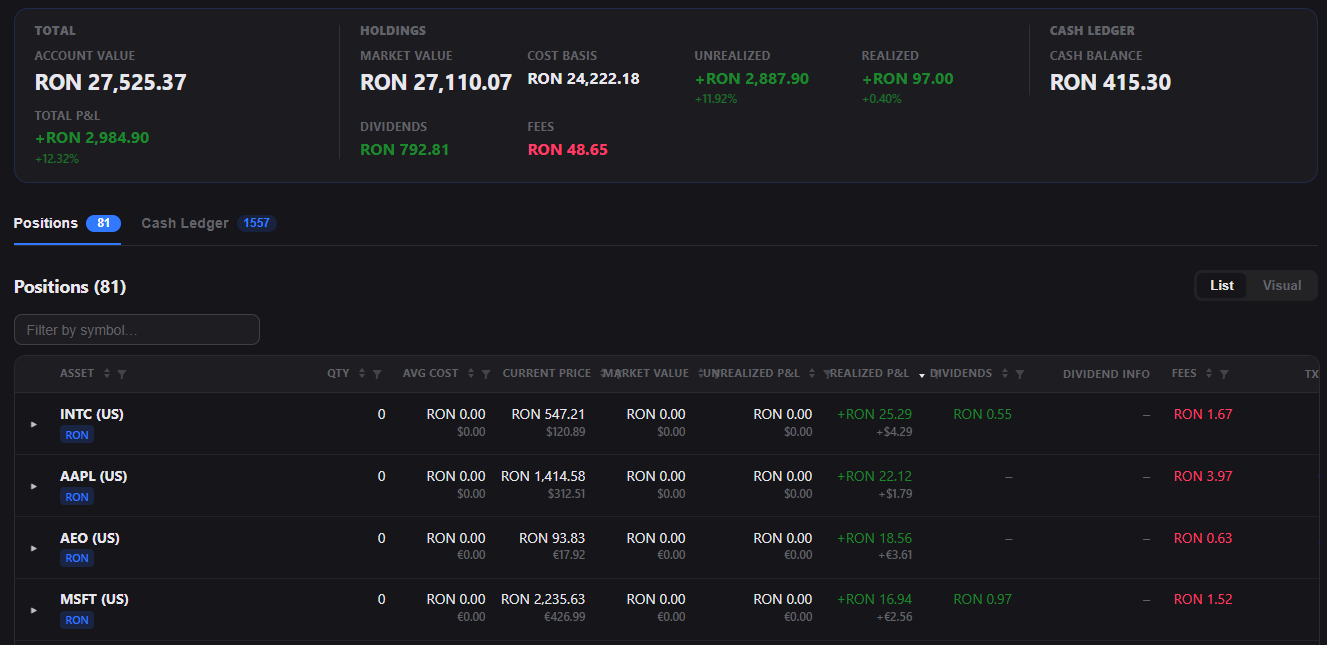
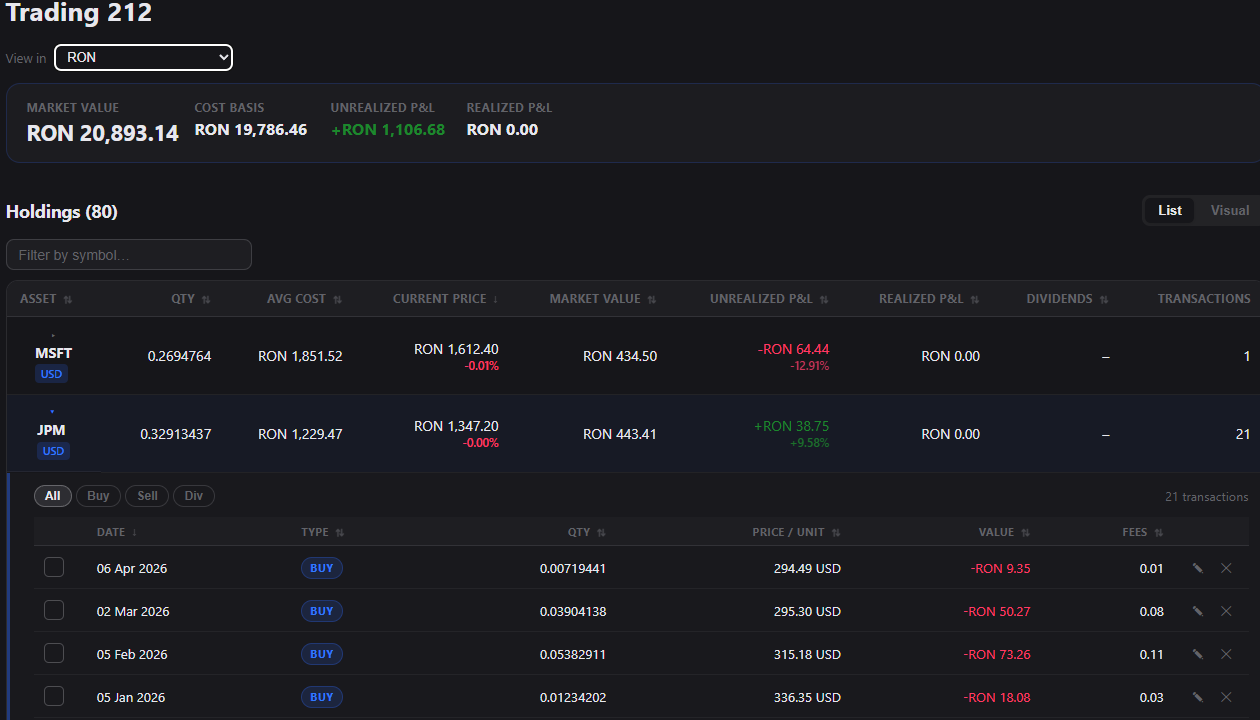
- Sell all holdings — for brokerage and crypto. Every open position is sold at prices you can review and edit first, one sale recorded per asset so your realized P/L and charts stay right. The proceeds become cash inside the portfolio; tick the box if you would rather take the money out and empty the account in the same step.
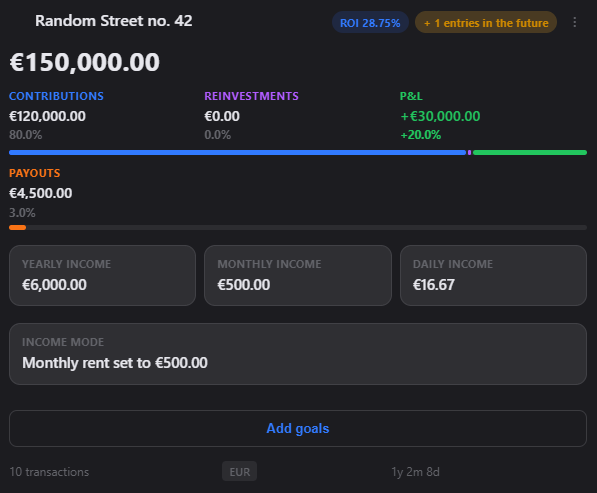
- Archive — the new home for anything you are done with. Closing or selling a portfolio archives it for you, and you can archive any portfolio yourself from its menu. It drops into a collapsed Archived section at the bottom of your planner with every entry, deposit and setting intact.
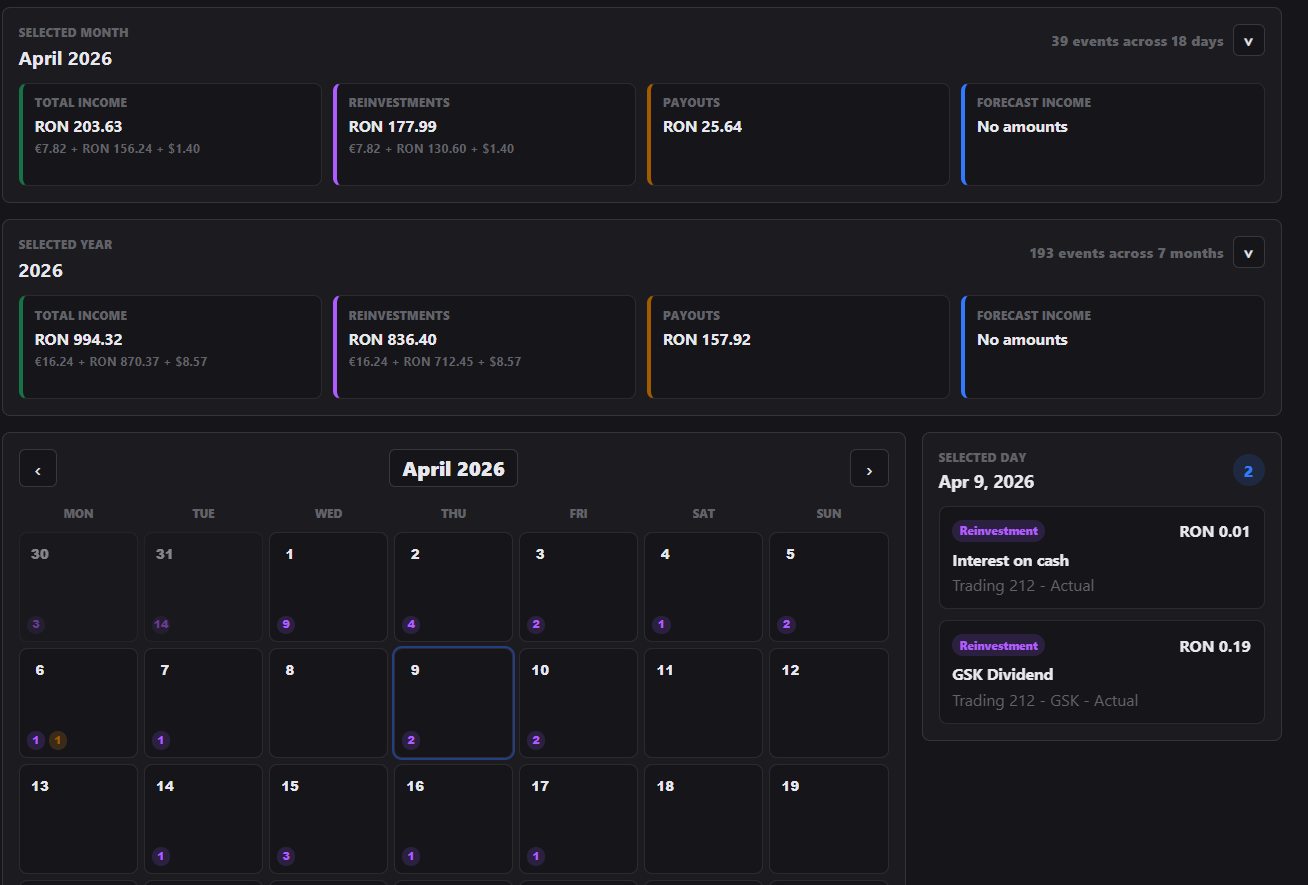
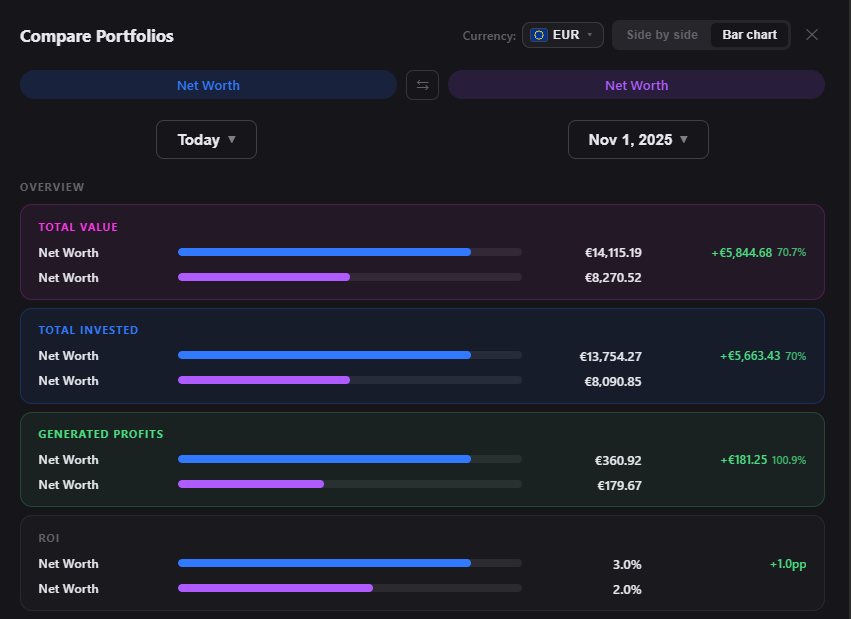
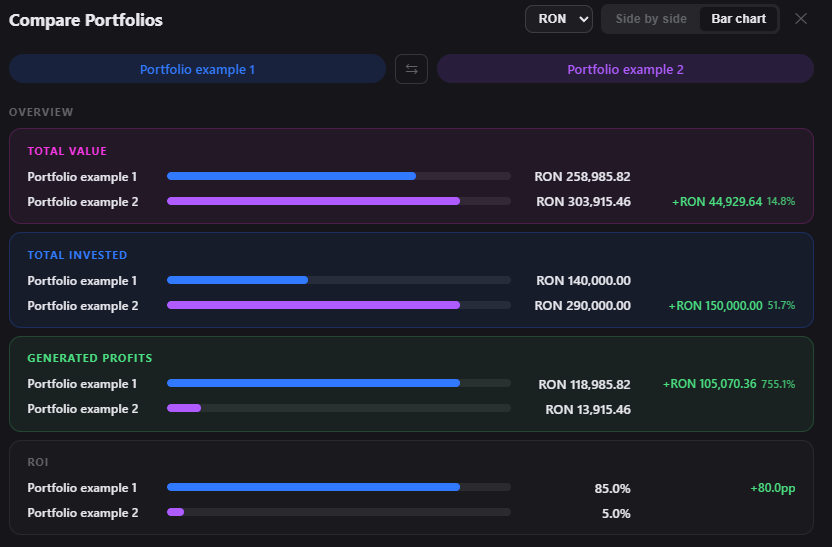
- An archived portfolio leaves your net worth, your allocation breakdown and your projections — so those figures describe only what you actually still hold. It stays in your income calendar, so you can still look back at what a closed deposit ladder paid you, and you can still compare it against a portfolio you kept.
- Archived portfolios do not count toward your plan's portfolio limit. Closing an account frees a slot instead of using one up forever.
- Deleting now happens from the Archived section: a live portfolio offers Archive, and Delete appears once it is on the shelf. Removing something from your dashboard never destroys its history in the same click.
- Changed your mind, or using an account again? Restore puts it straight back — and adding an entry or an import to an archived portfolio brings it back on its own.
Track gold, collectibles and other assets #
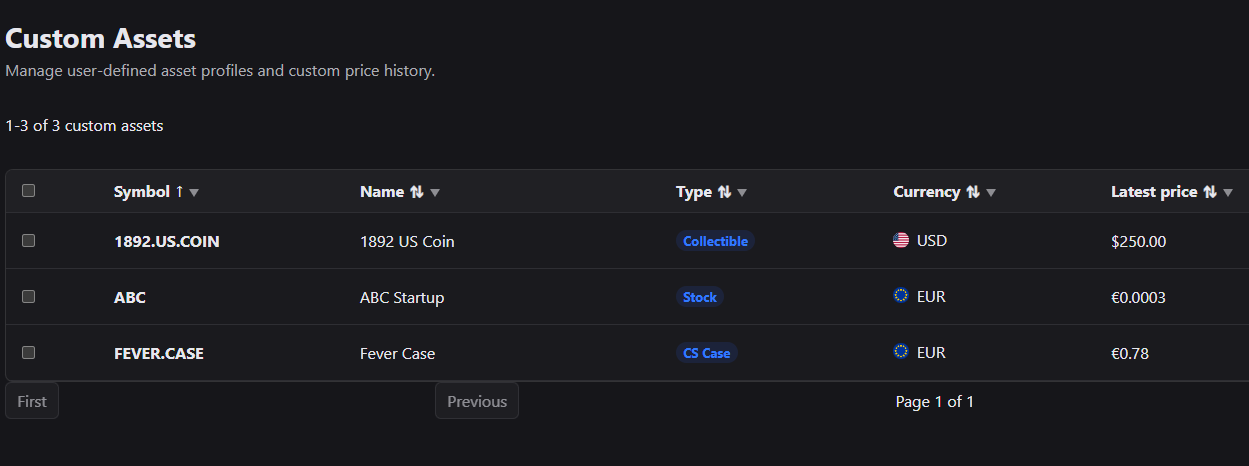
2026-07-27A new Other Assets category for everything without a ticker: physical gold, art, watches, vehicles, private stakes — tracked by a value history you maintain, with an optional fixed monthly income.
- Pick "Tracked value" for assets you revalue over time — gold bars, collectibles, a car, a startup stake, life-insurance cash value. The most recent entry in the value history is the asset's current value, and the chart shows how it appreciated.
- Pick "Income-producing" for assets that also pay a fixed monthly amount — royalties, rented-out equipment. The income lands in your income calendar and projections.
- Contributions and withdrawals record what you put in, so profit and ROI come from the gap between invested and current value.
- Other Assets count toward net worth, allocation and reports like every other category.
Crowdlending is now called Lending #
2026-07-27The category always handled plain loans, not just crowdlending platforms — so it now carries a name that says so, and has room for the private loans it already tracked perfectly well.
- Nothing moved: your portfolios, loans, entries and history are exactly where they were, under the new name.
- Use it for anything you lend directly and get repaid with interest — P2P platforms like EstateGuru, a loan to a friend or to your own company, seller financing.
- Bonds and fixed-term deposits still belong in Deposits & Bonds. The dividing line is who carries the credit risk: Lending is money you lent out yourself, with no secondary market to sell it on.
- Files you exported before today still import — they name the old category, and it is still recognised.
Not sure how to split your money? Answer six questions #
2026-07-25A short questionnaire turns your time horizon, your reaction to a drop and a few other answers into a starting allocation mix you can use as your targets.
- Look for "Not sure? Answer a few questions" on the Target allocation card, or start it from your profile — the questionnaire itself is free on every plan.
- Six questions, one per screen, about when you need the money, how you would react to a 25% fall, how steady your income is, whether you have an emergency buffer, what the money is for, and how familiar you are with investing.
- You get one of five starting templates, from Conservative to Aggressive, with the mix shown per category. If you may need the money within three years, or have no buffer yet, the template stays defensive whatever else you answered — and it tells you why.
- Your profile is saved so you can check it later from Profile → Settings, and answer again whenever your situation changes.
- These are educational starting templates, not investment advice, and not an assessment of whether an allocation is suitable for you. Nothing is applied until you choose to use it as your targets and hit Save.
Two-factor authentication #
2026-07-24Add a second layer of protection to your account with an authenticator app — free on every plan.
- Turn it on from the Security tab in your profile: scan a QR code with an app like Google Authenticator, Authy or 1Password, confirm with a 6-digit code, and save your one-time recovery codes.
- Once enabled, signing in asks for a code from your app in addition to your password.
- Lost access to your authenticator? Any unused recovery code signs you in once and lets you get back in.
- You can regenerate your recovery codes or turn two-factor authentication off at any time from the same Security tab.
AI summary: your numbers, in plain language #
2026-07-23A new card reads your portfolio — or your whole net worth — and writes out what the figures actually say, so you get the story without piecing it together from six different cards.

- Find it at the end of the Overview section on any portfolio, and on your net-worth dashboard for the full picture.
- You get a headline sentence with the value and return, then a few short lines on what drove it — your largest holdings, realized versus unrealized profit, dividends and income, fees, contributions and withdrawals.
- It only ever describes what already happened, using the exact figures shown elsewhere on the page. No predictions, no suggestions about what to do next.
- Written fresh once a day and kept ready after that, so the card loads instantly on later visits. Hit Refresh whenever you want it rewritten from the latest numbers.
- Available in English, Romanian and German — it follows the language set in your profile.
- AI summary is a Plus feature. It describes your data and is not financial advice.
Ask the assistant: a help chatbot for every screen #
2026-07-22A new chat assistant answers "how do I do X?" questions about the app, right from wherever you are — no more digging through the help guides.
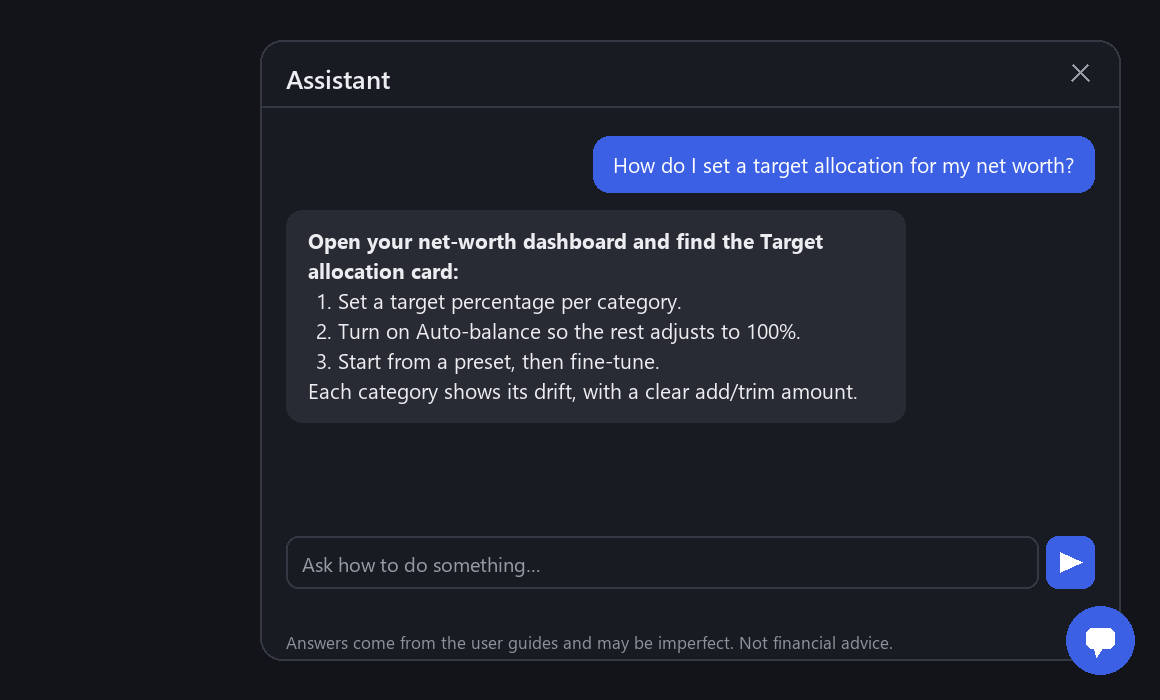
- Click the chat bubble in the bottom-right corner of any screen to open the assistant.
- Ask things like "how do I create a deposit?" or "how do I set a target allocation?" — it answers only from the official user guides, with links to the exact pages.
- Your conversation is remembered while you keep browsing, and even survives a page refresh. Start fresh anytime with the "new conversation" button in the panel header.
- Available on every plan, with a daily message limit that scales with your tier — check Plans & billing for the details.
- The assistant answers from the guides only — it never gives financial or investment advice.
Planning: model your future and your odds #
2026-07-15A new Planning section runs thousands of scenarios to show a likely range of outcomes for a portfolio — or your whole net worth — and the odds of reaching a target, including when you're likely to get there.
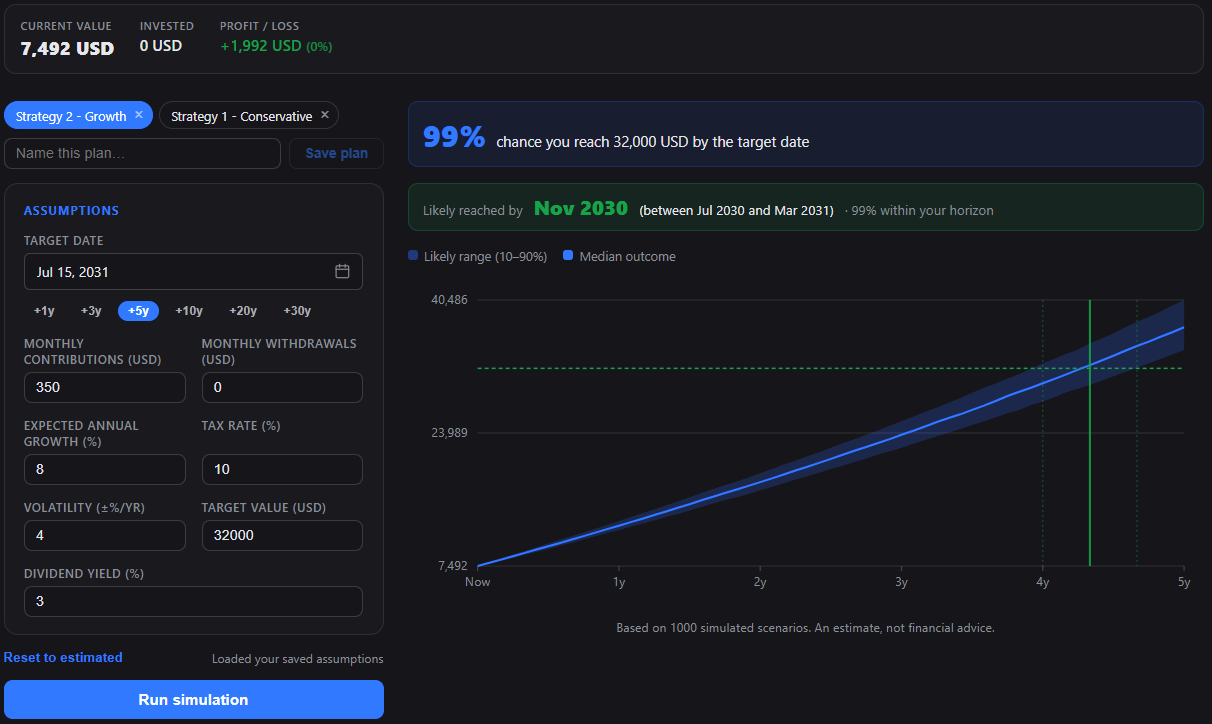
- Open Planning from the top navigation, then pick a portfolio or your net worth. A summary shows its current value, invested amount, profit/loss, income and age at a glance.
- Set your assumptions — target date, contributions, expected growth, and a volatility — then run the simulation to see a fan chart of the likely range (10–90%) around the median outcome.
- Add a target value to get your odds: "82% chance you reach €X by the target date", plus a "likely reached by" estimate with a date range — a first look at "when can I retire?".
- Save named plans and switch between them instantly; each one re-runs and redraws its chart. Compare a conservative scenario against an ambitious one.
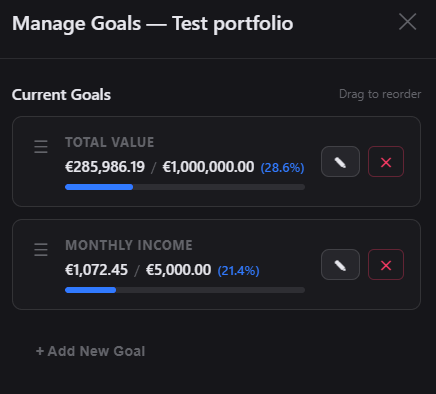
- Jump straight from a goal: the "Check the odds" button on a value goal opens Planning with the target already filled in.
- Planning is a Plus feature. It's an educational estimate, not financial advice.
Target allocation & rebalancing #
2026-07-14Set a target mix for your net worth, see how far each category has drifted, and get the exact amount to add or trim to get back on track.
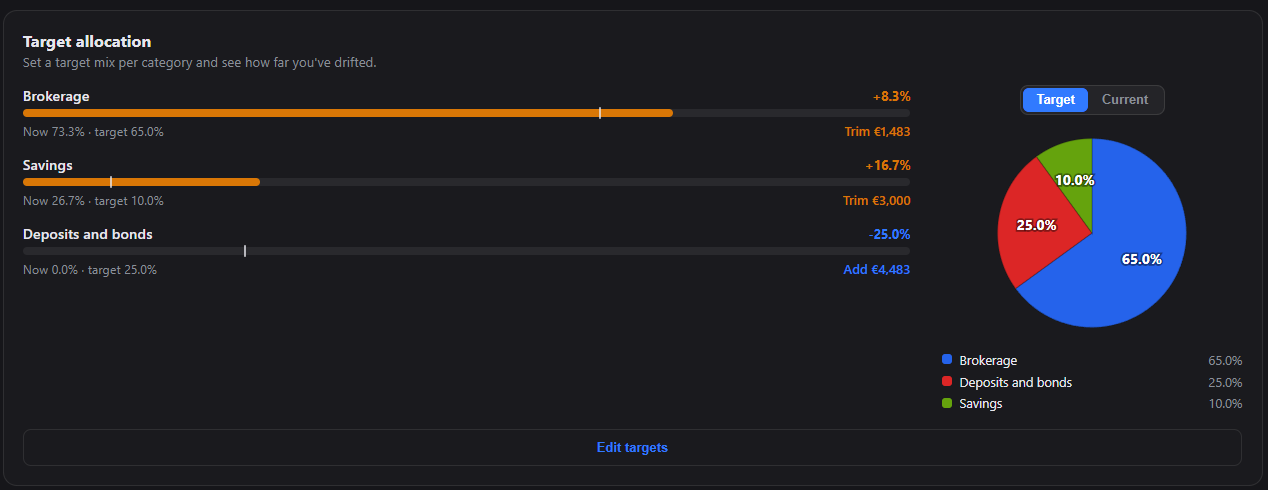
- A new Target allocation card on your net-worth dashboard: set a target percentage per category (Brokerage, Savings, Cash, and so on) and it shows your current mix beside it.
- Each category shows its drift from target, with a clear "add €X" or "trim €X" amount to rebalance back to plan.
- Set targets with sliders or by typing — turn on Auto-balance to have the rest adjust automatically so your mix always totals 100%.
- Start from a preset — Conservative, Balanced or Aggressive — then fine-tune from there.
- A live pie chart shows your target mix, with a toggle to compare it against your current allocation.
- Target allocation is a Plus feature.
Benchmark: are you beating the index? #
2026-07-13A new Benchmark section on each holdings portfolio shows what your money would be worth if you'd put the same amounts, on the same dates, into an index like the S&P 500 — right next to what you actually have.
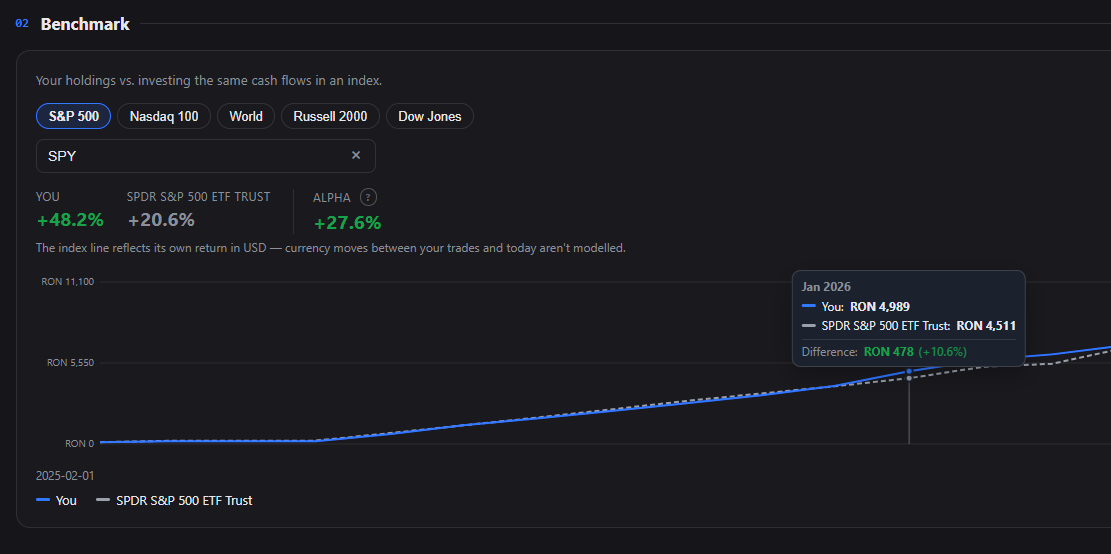
- Find Benchmark on a brokerage or crypto portfolio, just under the Overview. Pick an index from the presets — S&P 500, Nasdaq 100, World, Russell 2000, Dow Jones — or search for any ETF or index by ticker.
- Two lines over time: "You" (your holdings' value) versus the same cash flows invested in the index instead. Hover any point to see both values and the exact difference between them, in money and percent.
- Headline figures show your money-weighted (annualized) return, the index's return over the very same deposits and withdrawals, and your alpha — how much you beat or trailed it.
- Because it replays your actual cash flows into the index, the comparison holds up even for heavily-traded accounts — it answers "would I have done better just buying the index?"
- Benchmark is a Plus feature.
Privacy mode: hide your amounts at a glance #
2026-07-10Sharing your screen or checking your portfolio in public? One click on the new eye button in the top bar blurs every amount in the app — your balances stay yours.
- Click the eye button in the navigation bar to blur all monetary values everywhere: the dashboard, portfolio details, holdings, the income calendar, reports and comparisons.
- Percentages, dates and counts stay readable, so you can still see how things are performing — just not how much they are worth.
- Chart values are masked too, including the value axis and hover tooltips.
- Blurred amounts can't be selected or copied while the mode is on.
- Your choice is remembered on this device — the app reopens exactly as you left it. Click the button again to show amounts.
Privacy Policy, Terms of Service & account deletion #
2026-07-09You can now read exactly how your data is handled — and delete your account, with everything in it, whenever you choose.
- New Privacy Policy and Terms of Service pages, linked from the footer of every page and from the sign-up form.
- Download a complete copy of your data from Profile → Security → Your data — one ZIP with your account details plus every portfolio in full, ready to re-import.
- Delete your account from My account → Settings → Security → Delete account. It permanently removes your account and all of your data, and cancels any active subscription.
- Deletion asks you to confirm with your password (or by typing your email if you sign in with Google).
- Want to keep your records? Export your portfolios to CSV or Excel from the dashboard or export all your data from the Security tab before deleting.
Price history charts for every asset #
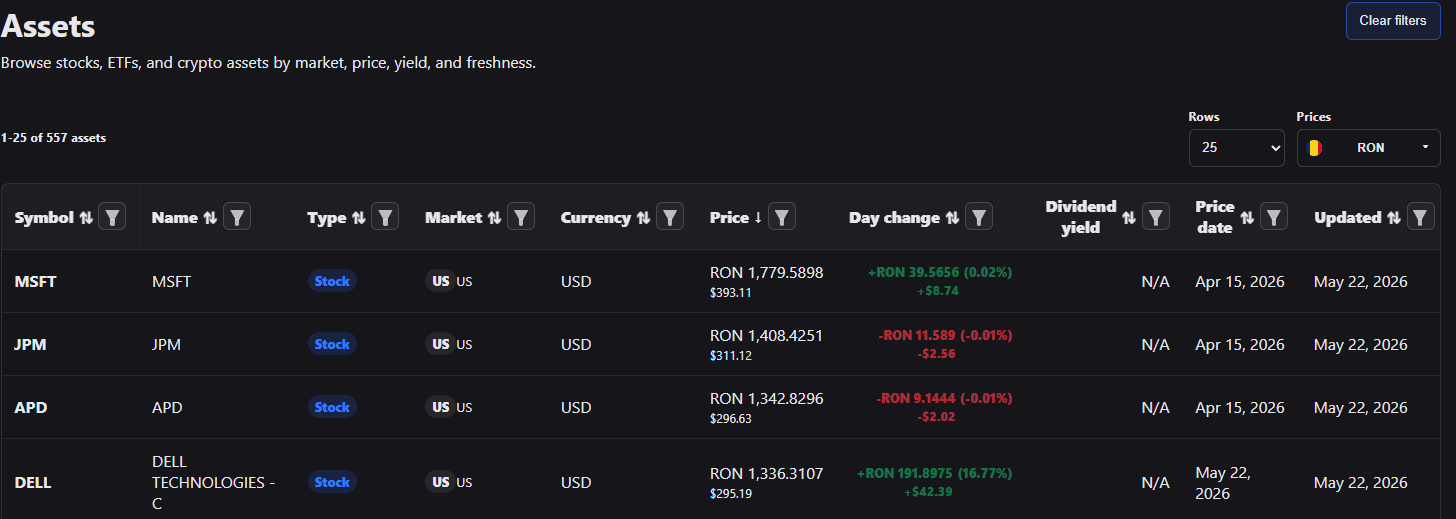
2026-07-09Assets now carry their full price history — click any row in the Assets catalog to chart it, open a dedicated page per asset, and see your own buys and sells plotted right on the price line inside your portfolios.
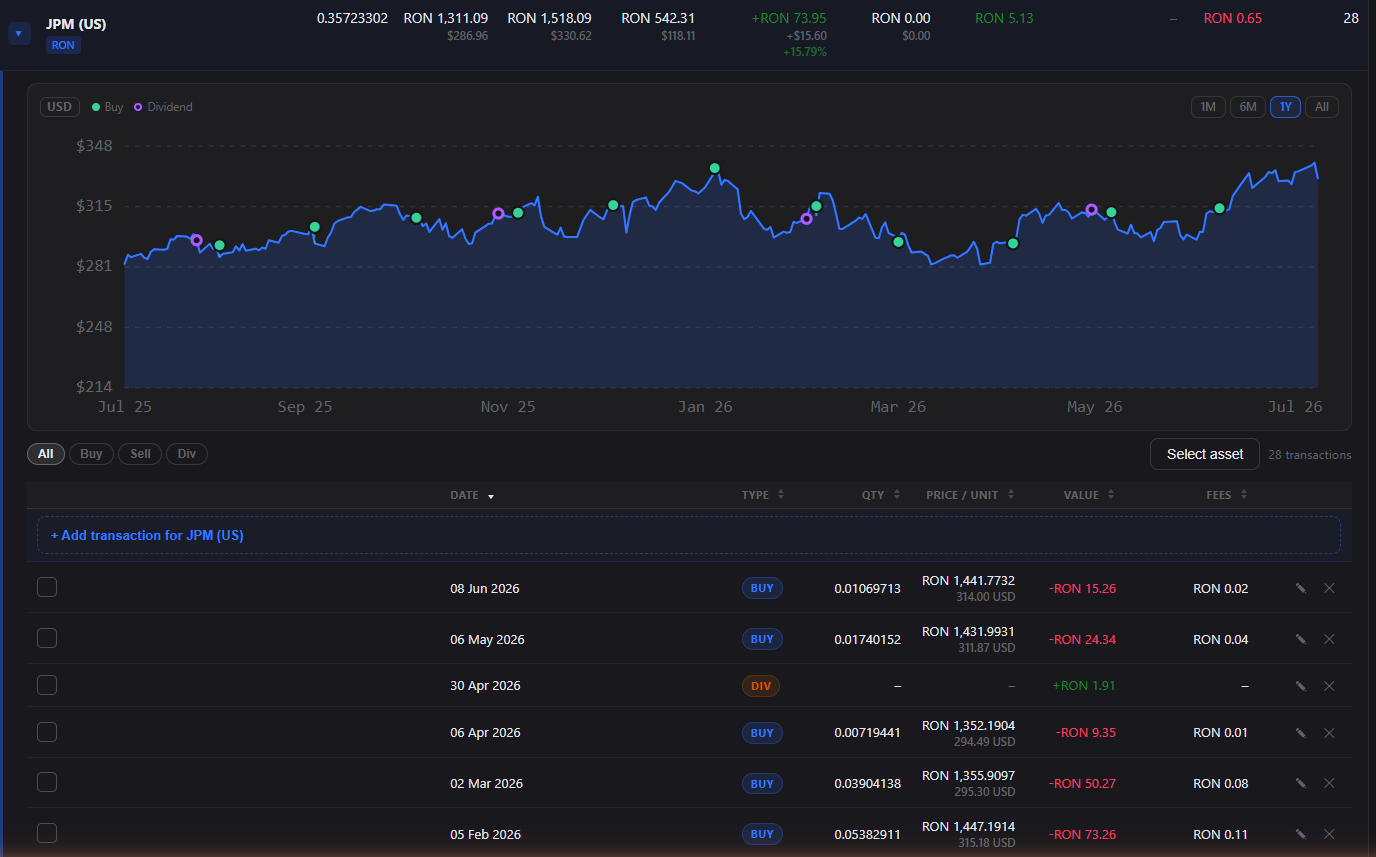
- In the Assets catalog, click any row to expand an interactive price chart — switch between 1M, 6M, 1Y and all-time ranges, and hover for the exact price on any day.
- A new "View details" link opens a dedicated page per asset, with a larger chart, current price and day change, market and identifier info, and its dividend profile.
- Expanding a position in a brokerage or crypto portfolio now shows the asset's price chart above its transactions, with your buys (green), sells (red) and dividends (purple) marked at the date and price you traded.
- Hover a trade to see the fill and how it compares to that day's closing price — buying below the close or selling above it shows green.
- Stock splits are handled: the whole series is adjusted to the current share basis, so a split no longer looks like an overnight price jump, and pre-split trades still land on the line.
- Charts are always shown in the asset's own currency, labeled on the axis (pence-quoted UK listings stay in GBX).
Import & export your portfolios #
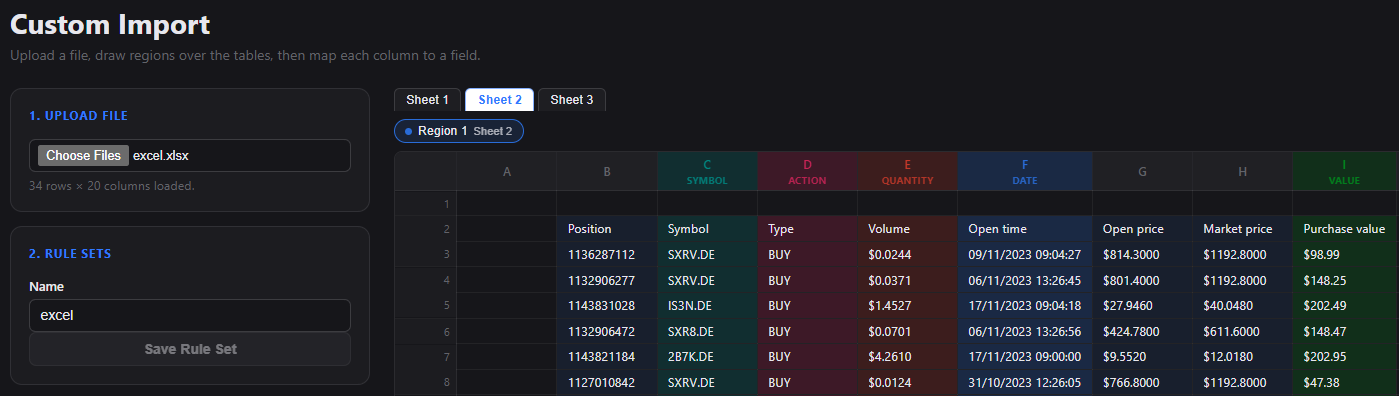
2026-07-07Export any portfolio — one, a selection, or your whole net worth — to CSV or Excel, and bring them back in from this app or a broker, with live progress for large batches and a heads-up on how many portfolios an import will create.
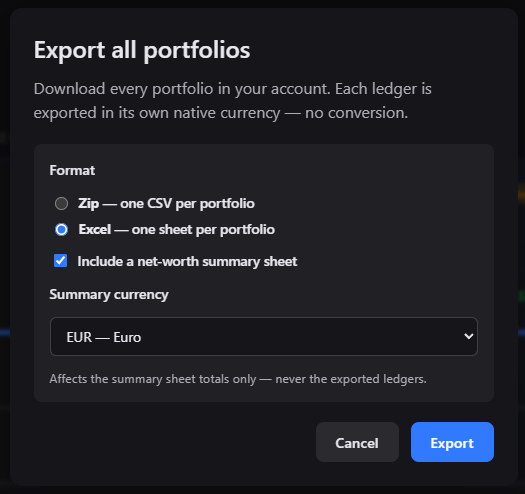
- Export a single portfolio, the ones you select, or everything at once — as a zip of CSVs or a single Excel workbook with one sheet per portfolio. Export from the planner header, the selection toolbar, the net-worth menu, or straight from a portfolio card.
- Excel exports can include a net-worth summary sheet, in the currency of your choice.
- Exported files can be used as an import source.
- Before you confirm an import, a note tells you exactly how many portfolios will be created from the file you picked.
Cash accounts #
2026-07-06Track a plain cash balance — a current account or a rainy-day envelope — with a new Cash portfolio that only cares about money in and money out.
- New Cash category: the simplest portfolio type — just contributions and withdrawals, with no interest, income or holdings to configure.
- When you create one, start from an opening balance, or optionally add an account history: a monthly contribution schedule that seeds how the balance built up over time.
- Add or remove money any time from the Activity tab — the balance is simply your contributions minus your withdrawals.
Pensions your way: funds, fixed income & tracked value #
2026-07-06Pension portfolios now come in three flavours — pick how yours is tracked when you create it, whether it's a fund, a monthly payout, or a value you maintain by hand.
- When you create a Pension portfolio, choose a type: Fund (Pillar II/III, 401(k), IRA — tracked by its holdings), Fixed income (a defined-benefit pension or annuity paid monthly), or Manual value (a deferred pension tracked by its transfer value).
- Fixed income and Manual value pensions get dedicated sections to set their transfer value, and Fixed income also lets you set a monthly income that shows up in your income calendar and projections.
- Fund pensions keep working exactly as before, including the Pilon 2 import.
- The type is chosen at creation and can't be changed later.
Send feedback & report bugs #
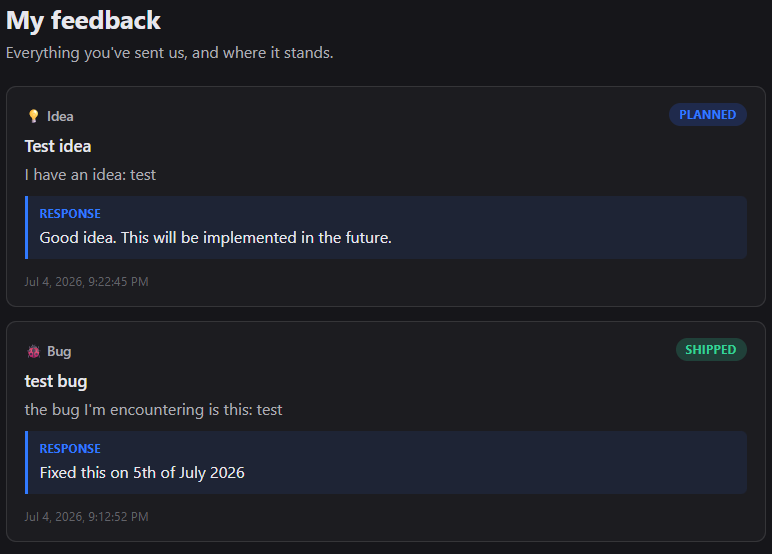
2026-07-05Found a bug, have an idea, or just want to say hi? A new Feedback button in the top bar lets you tell us — and a "My feedback" page shows the status of everything you've sent.
- Click Feedback in the top navigation to open the form — pick a type (Bug, Idea, Question or Praise), add a title and a few details, and send.
- We automatically attach the page you're on and your app version, so there's no need to describe where you were — it helps us investigate faster.
- Revisit everything you've submitted on the new "My feedback" page (in your account menu, or straight from the feedback form).
- Each item shows a status — Received, Reviewing, Planned, Shipped or Declined — so you can see where it stands.
- You'll be notified whenever we update the status of your feedback.
Crowdlending portfolios #
2026-07-04EstateGuru and other peer-to-peer lending now live in a dedicated Crowdlending category — each loan is tracked with its own principal, interest, maturity and repayment status.
- New Crowdlending category: it behaves like Deposits & Bonds, but tracks each loan individually with its principal, interest rate, maturity date and lifecycle status (active, late, defaulted, recovered, repaid).
- EstateGuru imports now land in Crowdlending instead of Properties — a much better fit for loan-backed investing.
- You can upload both EstateGuru exports at once: the payments/cash-flow file (required) and the portfolio roster (optional) — the roster fills in each loan's status, maturity and interest rate.